# Inbank Calculator Guide
Documentation version 1.12, 02.06.2026
Here at Inbank we strive to help our partners sell more by simplifying purchases and making financing more accessible to customers. For this reason, we have built a plug-and-play calculator solution for our merchants. Just pick the calculator format suitable to your website, follow the simple steps below and start displaying monthly payments to your customers. This added feature will boost your conversion and sales.
For questions regarding the Inbank calculator, contact us at:
- Estonia - integration@inbank.ee
- Poland - integration@inbank.pl
- Latvia - integration@inbank.lv
- Czech Republic - integration@inbank.cz
- Lithuania - integration@inbank.lt
# Adding the Calculator to a Page
You can add the calculator to any webpage by simply using a JS script. The website platform of your site defines how the script can be added to all product pages (or checkout page if needed).
{% admonition type="info" name="Generate calculator code" %}
You can easily construct the calculator code using Inbank's generator tool.
{% /admonition %}
Example of the calculator script:
```html
```
Note that you need to contact your Inbank representative to whitelist your domain if you plan to initiate an ePOS session. For standard calculator usage without starting a session, whitelisting is not required.
# Configuring the Calculator
There are multiple parameters that can be configured, so that the calculator looks and works as you expect it to. Mandatory configuration parameters are marked with \*.
|Parameter|Description|
| :- | :- |
|layout|The layout of the calculator, which defines its look and size. Available options:
`default` - for Hire Purchase and HP Flex/Moki payment products. The rendered calculator layout is determined automatically based on the selected product type. Examples of this layout are available in [Default Calculator Layout](/api/js-calculator-flow/section/inbank-calculator-layouts/default-calculator-layout). `extended` - vertical layout for payment products. Examples of this layout are available in [Extended Calculator Layout](/api/js-calculator-flow/section/inbank-calculator-layouts/extended-calculator-layout). `extended-horizontal` - horizontal layout for payment products. Examples of this layout are available in [Extended Calculator Layout](/api/js-calculator-flow/section/inbank-calculator-layouts/extended-calculator-layout).|
|variant\*|The type of payment product to be used in the calculations. Currently, this value needs to be set to `calculator-indivy-plan`.|
|shop_uuid\*|A unique code that is used to identify your site in Inbank systems. The `shop_uuid` can be found in Partner Portal.|
|product_code\*|The product code, which defines all the parameters and rules for the monthly payment calculation. The `product_code` can be found in Partner Portal.|
|amount\*|The price of the product. If the price is smaller or bigger than allowed in the payment product configuration, an error will be shown to the customer.
You need to define in your e-commerce platform how the calculator will get the price of the product automatically from the product page. In the example [provided above](/api/js-calculator-flow/section/adding-the-calculator-to-a-page), the amount is set to a static value. However, it is expected that the amount is taken from the product page.
For example, in WordPress with the WooCommerce e-commerce plugin, the price can be extracted like this: Have the product defined as ```$product``` in the .php file in which you want to add the calculator. When assembling the calculator script, replace the `amount` value with ```get_price(); ?>``` as follows: ```amount: get_price(); ?>```|
|template|Whether the customer will be able to edit the loan amount in the calculator modal. If the `template` parameter is not set, the calculator with an uneditable loan amount is shown. Available options:
`editable_amount` - template that allows the customer to change the loan amount in the calculator modal `no_editable_amount` - template that does not allow the customer to change the loan amount in the calculator modal|
|mode|The background color of the calculator. By default, this parameter is set to `lavender`. Available options:
`purple` `lavender` `white`|
|lang|The language in which texts in the calculator are shown. Available languages are `en`, `lt`, `lv`, `et`, `cs` and `ru`. If the language is not indicated, the default value `en` is used.|
|region\*|The environment to which the calculator is connected.
Estonia: `eedemo` for demo/test environment `ee` for the production environment
Latvia: `lvdemo` for demo/test environment `lv` for the production environment
Lithuania: `ltdemo` for demo/test environment `lt` for the production environment
Poland: `pldemo` for demo/test environment `pl` for the production environment
Czechia: `czdemo` for demo/test environment `cz` for the production environment|
|URL|The link to the calculator library in either demo or live environment. The link is set as the last element of the script. Available options:
demo- https://demo-calculator.inbank.eu/api/calculator live - https://calculator.inbank.eu/api/calculator|
# Inbank Calculator Layouts
## Default Calculator Layout
The `default` layout is used for both Hire Purchase and HP Flex/Moki payment products. The rendered calculator appearance is determined automatically based on the selected product type.
Hire Purchase
Depending on the width available to the calculator, it will have one of the following sizes:
- 300 x 125
- 402 x 150
On the examples below, the layout parameter is set to `default` for a Hire Purchase payment product.
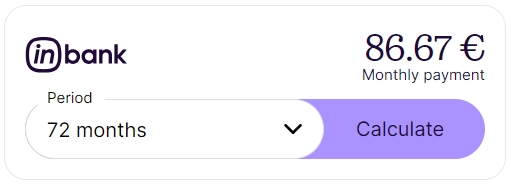
- The example below shows the calculator with the `mode` set to `white`:
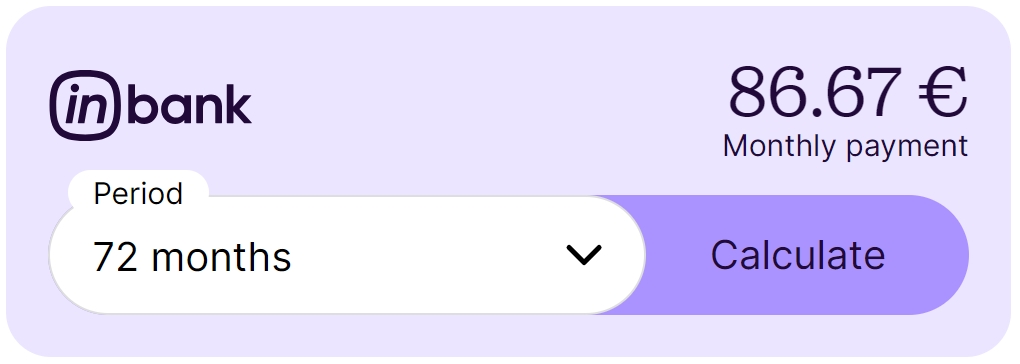
 - The example below shows the calculator with the `mode` set to `lavender`:
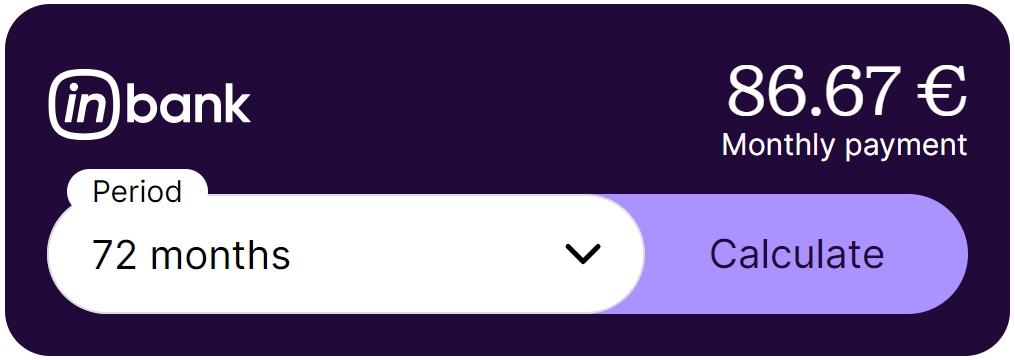
 - The example below shows the calculator with the `mode` set to `purple`:
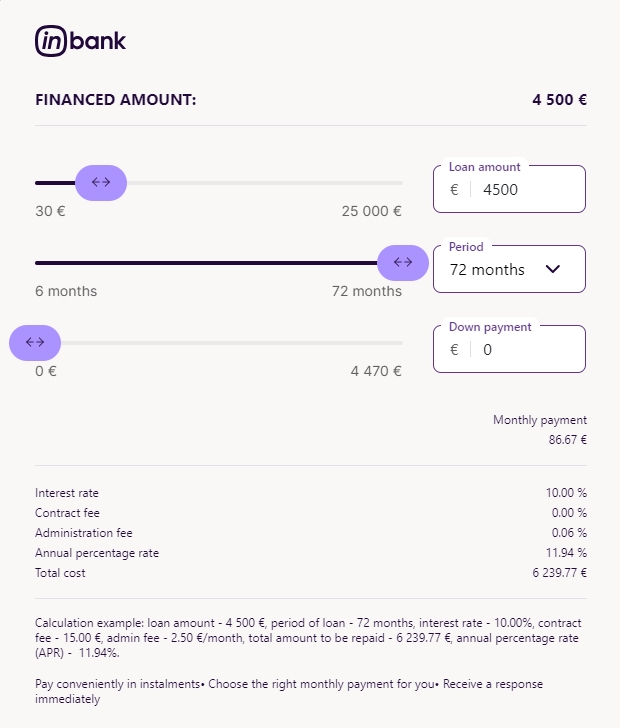
 Once the user clicks the button within the calculator, an additional modal will be displayed with a maximum width of 640px.
 HP Flex/Moki
The Moki calculator has fixed dimensions of 300 x 125.
On the example below, the layout parameter is set to `default` for a HP Flex/Moki payment product.
HP Flex/Moki
The Moki calculator has fixed dimensions of 300 x 125.
On the example below, the layout parameter is set to `default` for a HP Flex/Moki payment product.
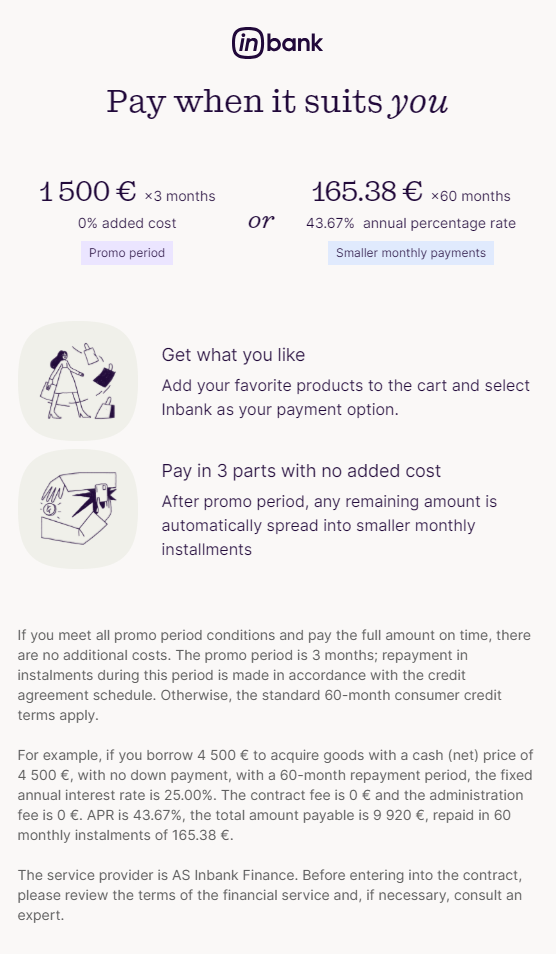
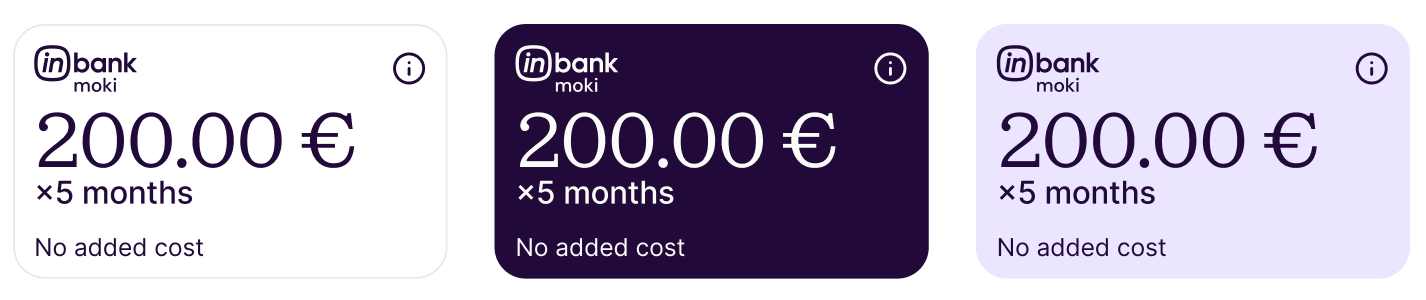 Once the user clicks on the calculator, an additional modal will be displayed with a maximum width of 640px.
 ## Extended Calculator Layout
Note that you need to contact your Inbank representative to whitelist your domain if you plan to initiate an ePOS session. For standard calculator usage without starting a session, whitelisting is not required.
Please note that this layout is recommended if Hire Purchase, loan or leasing type of product is to be used with the calculator.
There are two layouts available for the Extended Calculator with the following sizes:
- `extended-horizontal` with dimensions 650x350
- `extended` with dimensions 350x650
Please note that the `extended-horizontal` version will switch to 350x650 dimensions automatically for screens too narrow to accommodate its usual dimensions.
On the examples below, the layout parameter is set to `extended-horizontal`.
- The example below shows the calculator with the `mode` set to `white`:
## Extended Calculator Layout
Note that you need to contact your Inbank representative to whitelist your domain if you plan to initiate an ePOS session. For standard calculator usage without starting a session, whitelisting is not required.
Please note that this layout is recommended if Hire Purchase, loan or leasing type of product is to be used with the calculator.
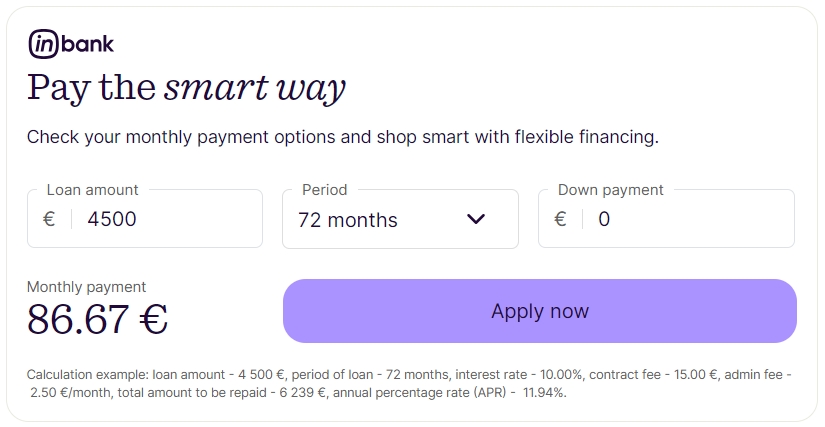
There are two layouts available for the Extended Calculator with the following sizes:
- `extended-horizontal` with dimensions 650x350
- `extended` with dimensions 350x650
Please note that the `extended-horizontal` version will switch to 350x650 dimensions automatically for screens too narrow to accommodate its usual dimensions.
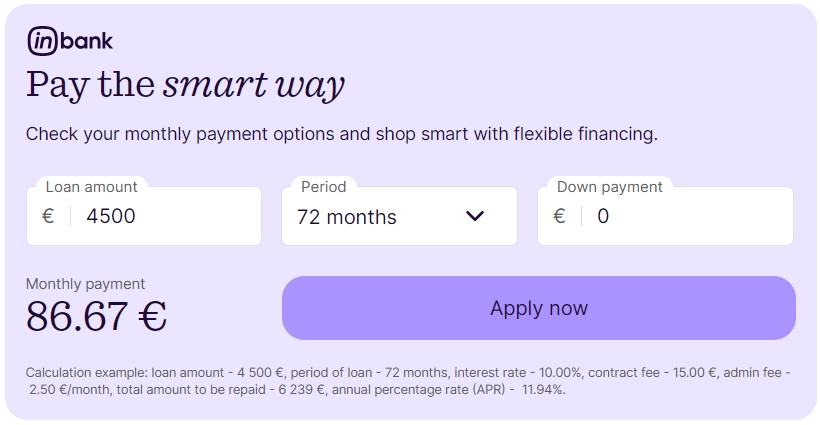
On the examples below, the layout parameter is set to `extended-horizontal`.
- The example below shows the calculator with the `mode` set to `white`:
 - The example below shows the calculator with the `mode` set to `lavender`:
 - The example below shows the calculator with the `mode` set to `purple`:
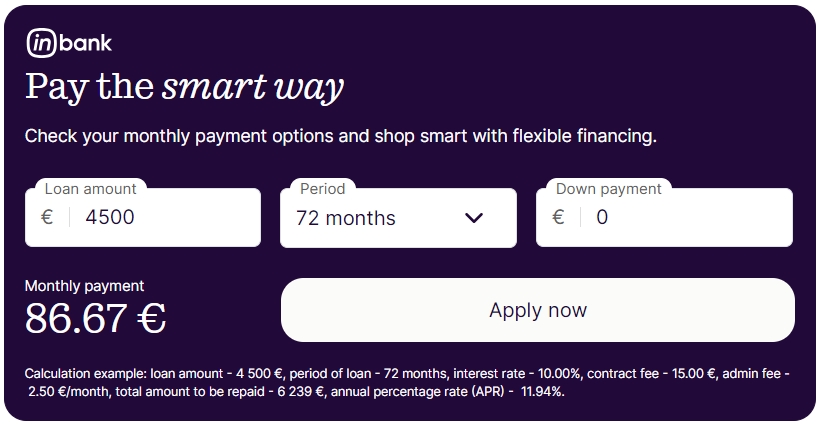 On the examples below, the layout parameter is set to `extended`.
- The example below shows the calculator with the `mode` set to `white`:
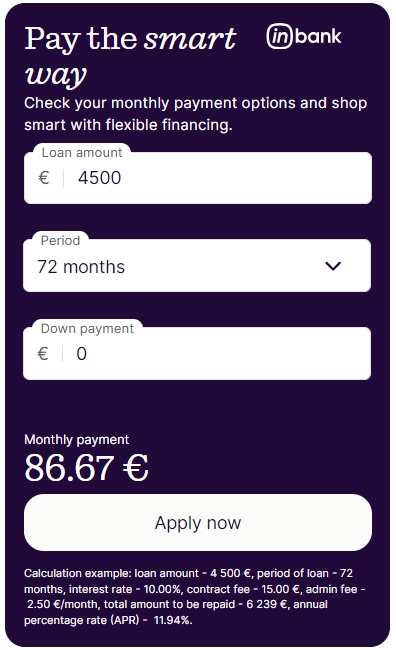
On the examples below, the layout parameter is set to `extended`.
- The example below shows the calculator with the `mode` set to `white`:
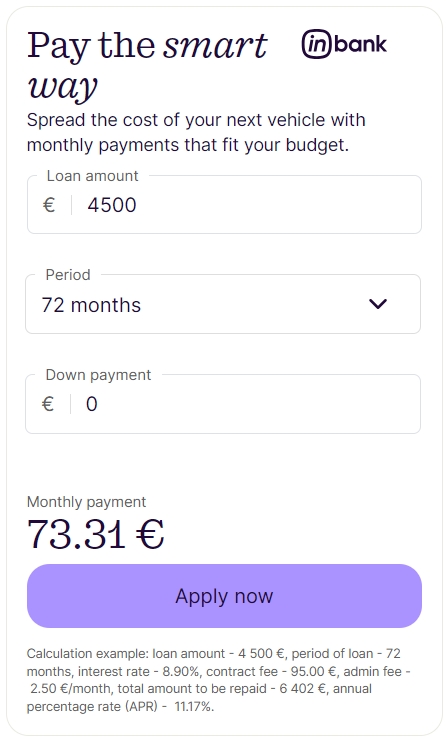 - The example below shows the calculator with the `mode` set to `lavender`:
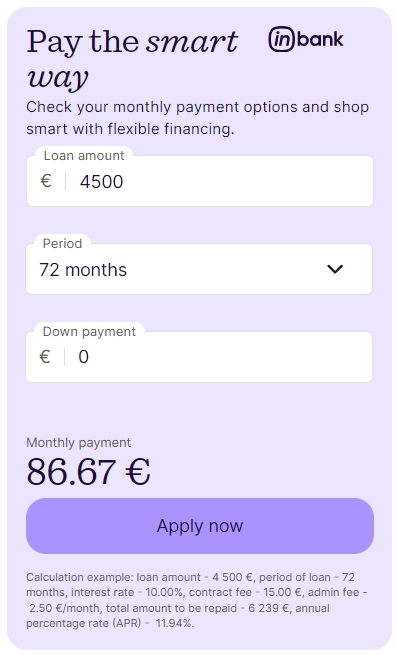 - The example below shows the calculator with the `mode` set to `purple`:
 ## Servers
Demo environment
```
https://demo-api.inbank.ee
```
Live environment
```
https://api.inbank.ee
```
## Security
### bearerAuth
Type: http
Scheme: bearer
## Download OpenAPI description
[Inbank Calculator Guide](https://docs.inbank.eu/_bundle/api/js-calculator-flow.yaml)
## Servers
Demo environment
```
https://demo-api.inbank.ee
```
Live environment
```
https://api.inbank.ee
```
## Security
### bearerAuth
Type: http
Scheme: bearer
## Download OpenAPI description
[Inbank Calculator Guide](https://docs.inbank.eu/_bundle/api/js-calculator-flow.yaml)