Shopify App Guide
Documentation version 2.4.0, 20.11.2025
Here at Inbank we strive to help our partners sell more by simplifying purchases and making financing more accessible to customers. For exactly this reason we offer a number of buy-now-pay-later solutions.
The Pay Later Platform by Inbank connects partner e-shops with our e-POS solution. With e-POS, partners only need to add Inbank as a payment method and Inbank will take care of all the rest. Customers are redirected to the e-POS environment to complete the financing of the purchase. After a successful financing process we redirect the customer back to you.
Inbank e-POS is supplemented with Inbank Partner Portal where merchants can see the overview of submitted credit applications, create applications for customers and conduct contract withdrawals.
Please note, that only full refunds are possible through the app.
If you have any questions about Inbank Shopify app, just contact us and we will be happy to help:
- Estonia - integration@inbank.ee
- Poland - integration@inbank.pl
- Latvia - integration@inbank.lv
- Czech Republic - integration@inbank.cz
- Lithuania - integration@inbank.lt
Pay Later Platform by Inbank includes storefront content translations for the following languages: Estonian, Polish, English, Russian, Latvian, Czech, Lithuanian.
The Pay Later Platform gives merchants access to the following Inbank products:
You can find the list of available Inbank products here.
There are just a couple ways to start using the Pay Later Platform by Inbank:
Installation by link
- Go to https://app.inbank.eu/install.
- Enter the URL of the store in which you wish the Pay Later Platform by Inbank to be installed and click INSTALL. You will then be redirected to the Inbank settings page.
- Click Add product, fill in and save the product details which have been provided by your Inbank representative.
- Once you've added a product click Back to Shopify.
- Click Activate on the app page and that's it. You are now all set to offer Inbank payment solutions to your customers.
Installation by searching for a payment provider
- In your store admin panel go to the payment settings at Settings > Payments and click Add payment methods.
- Choose to Search by provider, and type in Inbank.
- Click on the Inbank app.
- On the page that loads click Activate > Connect. The app will then be installed in your store.
- Click Add product, fill in and save the product details which have been provided by your Inbank representative.
- Once you've added a product click Back to Shopify.
- Click Activate on the app page and that's it. You are now all set to offer Inbank payment solutions to your customers.
After successful installation of the Pay Later Platform by Inbank, you can configure Inbank products as payment methods in your admin panel.
Pay Later Platform configuration is done at Settings > Payments > Inbank > Manage > Manage.
The app includes the following Inbank payment methods:
- Inbank Hire Purchase Estonia
- Split into parts Estonia
- Inbank Hire Purchase Poland
- Inbank Hire Purchase Latvia
- Split into parts Latvia
- Inbank Hire Purchase Czechia
- Inbank Hire Purchase Lithuania
- Inbank Moki Lithuania
- Inbank HP Flex Estonia
- Inbank HP Flex Latvia
- Inbank HP Flex Poland
The app overview page at Settings > Payments > Inbank > Manage > Manage includes the list of all the Inbank payment options added.
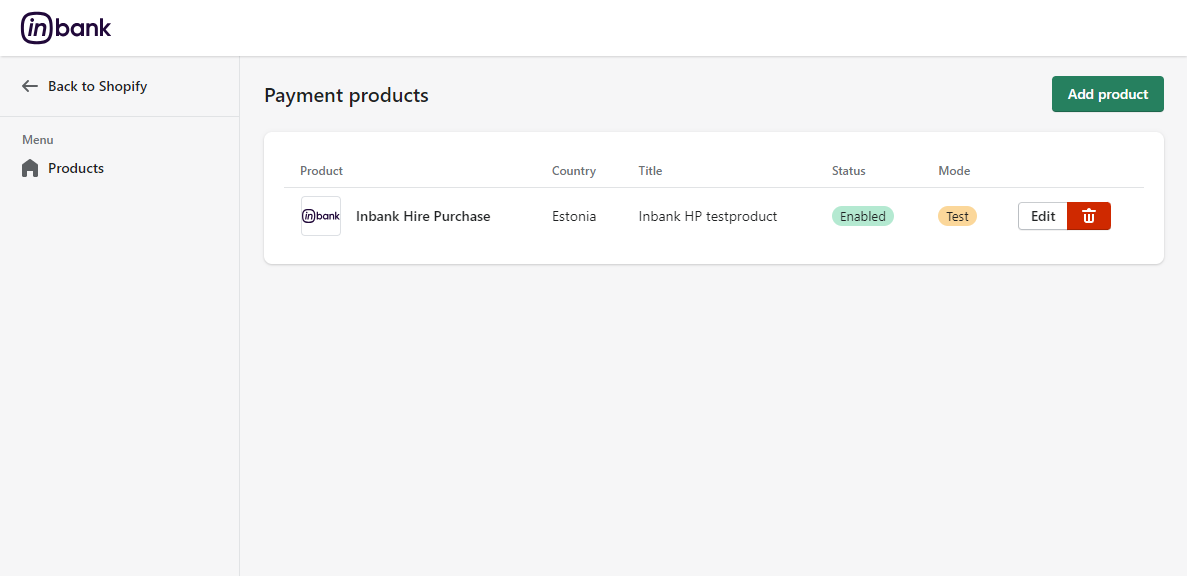
Here several actions regarding added payment options are available:
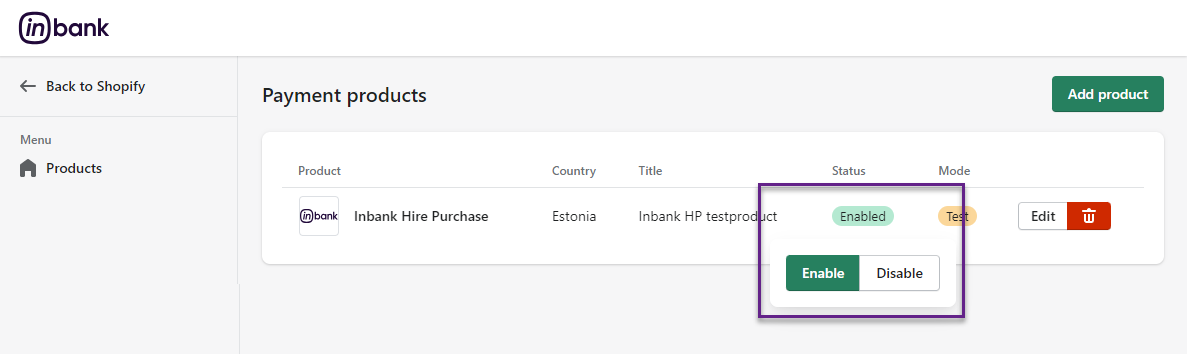
● Click the Status icon next to a payment option to enable/disable it.
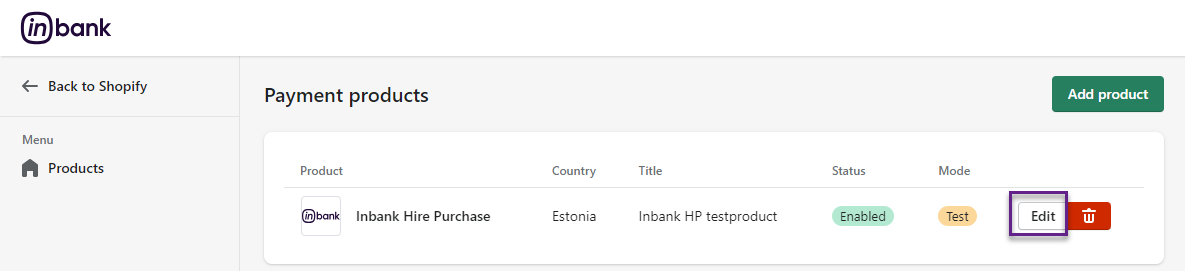
● Click Edit next to a payment option to make changes to its configuration.
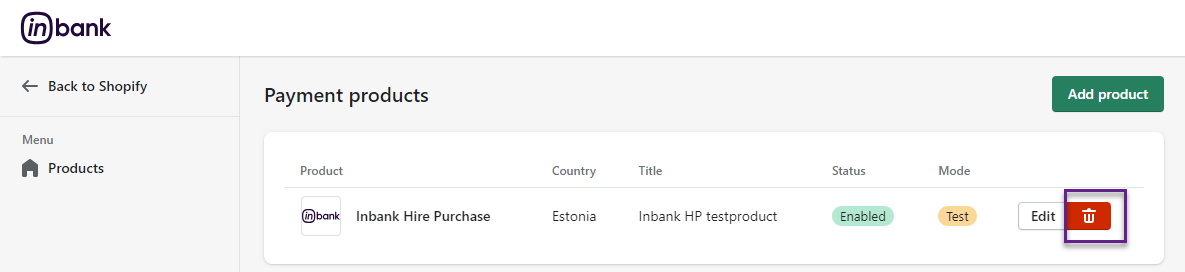
● Click Delete next to a payment option to remove it from the list.
New payment options are added via clicking the Add product at Settings > Payments > Inbank > Manage > Manage.
Depending on the Inbank branch(es) you are cooperating with, you need to configure the payment products for Estonia, Poland, Czechia, Latvia or Lithuania. You can offer one of the available products or several, depending on the agreement you have with Inbank.
The following configuration parameters are predefined by Inbank:
- Title
- Maximum order amount
- Minimum order amount
- Period
- Additional details
Note that the predefined values will be updated if they change on the Inbank side. The exceptions are the Title and Additional details values which are customizable. The Title and Additional details are updated if set to default, but are not updated if they have been customized.
For more information on updates, refer to the Updates section.
Adding a new Inbank payment method to the app configuration is a simple two-step process.
On step 1 you need to set the keys and product code required for the functioning of the app and the mode in which this payment product is to be available: live or test.
Inbank representatives will provide you all the data required for this step. Make sure to fill in all the fields correctly, as they are essential to the configuration of Inbank payment products.
On step 2 you can review your configuration and set a couple additional options available in the app.
To start adding a new Inbank payment product, click Add product at Settings > Payments > Inbank > Manage > Manage.
Configuration settings are similar for all payment products: Inbank Hire Purchase Estonia, Split into parts Estonia, Inbank HP Flex Estonia, Inbank Hire Purchase Poland, Inbank HP Flex Poland, Inbank Hire Purchase Czechia, Inbank Hire Purchase Latvia, Split into parts Latvia, Inbank HP Flex Latvia, Inbank Hire Purchase Lithuania, Inbank Moki Lithuania.
The product code set during configuration defines the credit conditions available to customers and also automatically sets the following parameters:
- Title
- Maximum order amount
- Minimum order amount
- Period
- Additional details
Step 1 includes the essential parameters needed for the payment option setup. Inbank representatives will provide you all the information needed at this step.
After you add the necessary data, click Save. After this the product is already added to your store, but on step 2 you can review the configuration and set a number of additional parameters for the payment option.
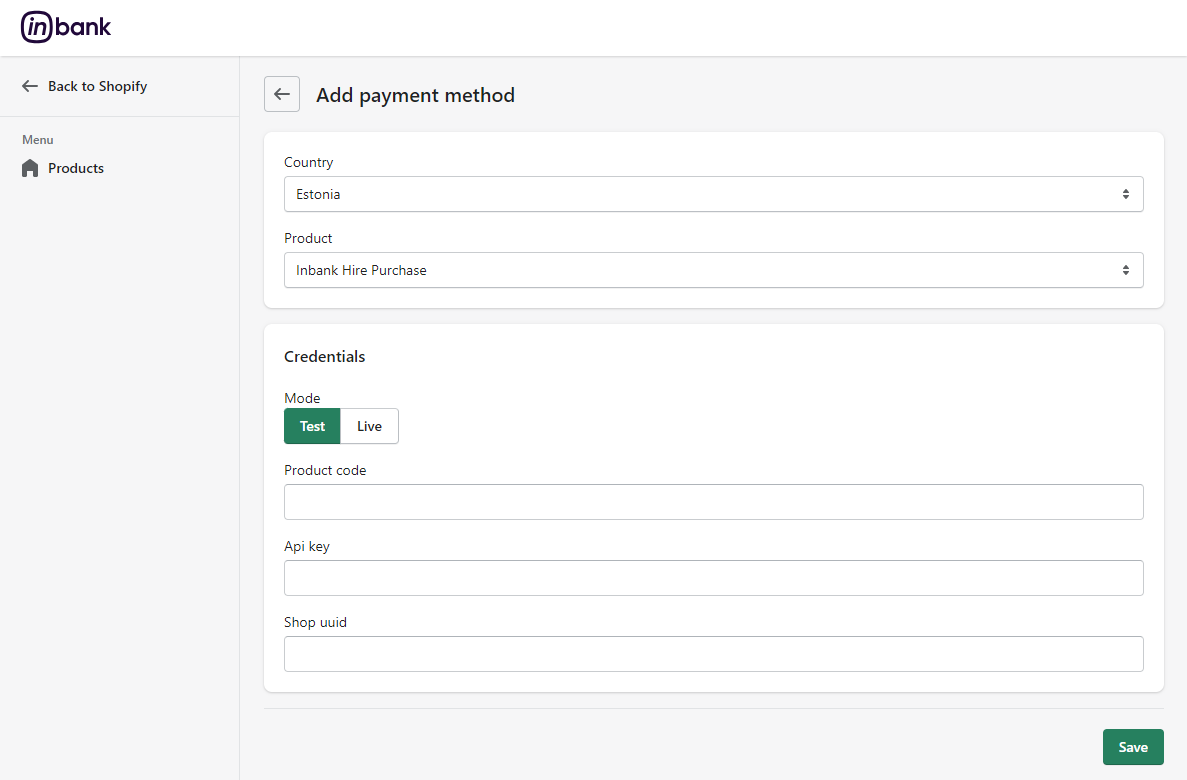
| Field | Description |
|---|---|
| Country | The market for which you wish to add an Inbank payment method. Available options: Estonia, Poland, Czechia, Latvia, Lithuania. |
| Product | The payment product you wish to add. The section depends on the Country: - Estonia - Inbank Hire Purchase, Split into parts, Inbank HP Flex - Poland - Inbank Hire Purchase, Inbank HP Flex - Latvia - Inbank Hire Purchase, Split into parts, Inbank HP Flex - Czechia - Inbank Hire Purchase - Lithuania - Inbank Hire Purchase, Inbank Moki |
| Mode | Select whether the app should be connected to the test API for testing purposes or the production API. This parameter defines whether next you need to set the API key, UUID and product code for the live or test environment. By default, test mode is enabled, but the setting can be customized. |
| Product code | The product code provided by Inbank. This code defines the credit conditions offered at checkout. |
| API key | The unique key of the shop used for building API requests through which the shop communicates with Inbank. |
| Shop UUID | The API authentication key. The API key should be kept private. |
Step 2 lets you review the payment option configuration and includes a number of additional parameters which can be configured for Inbank payment methods.
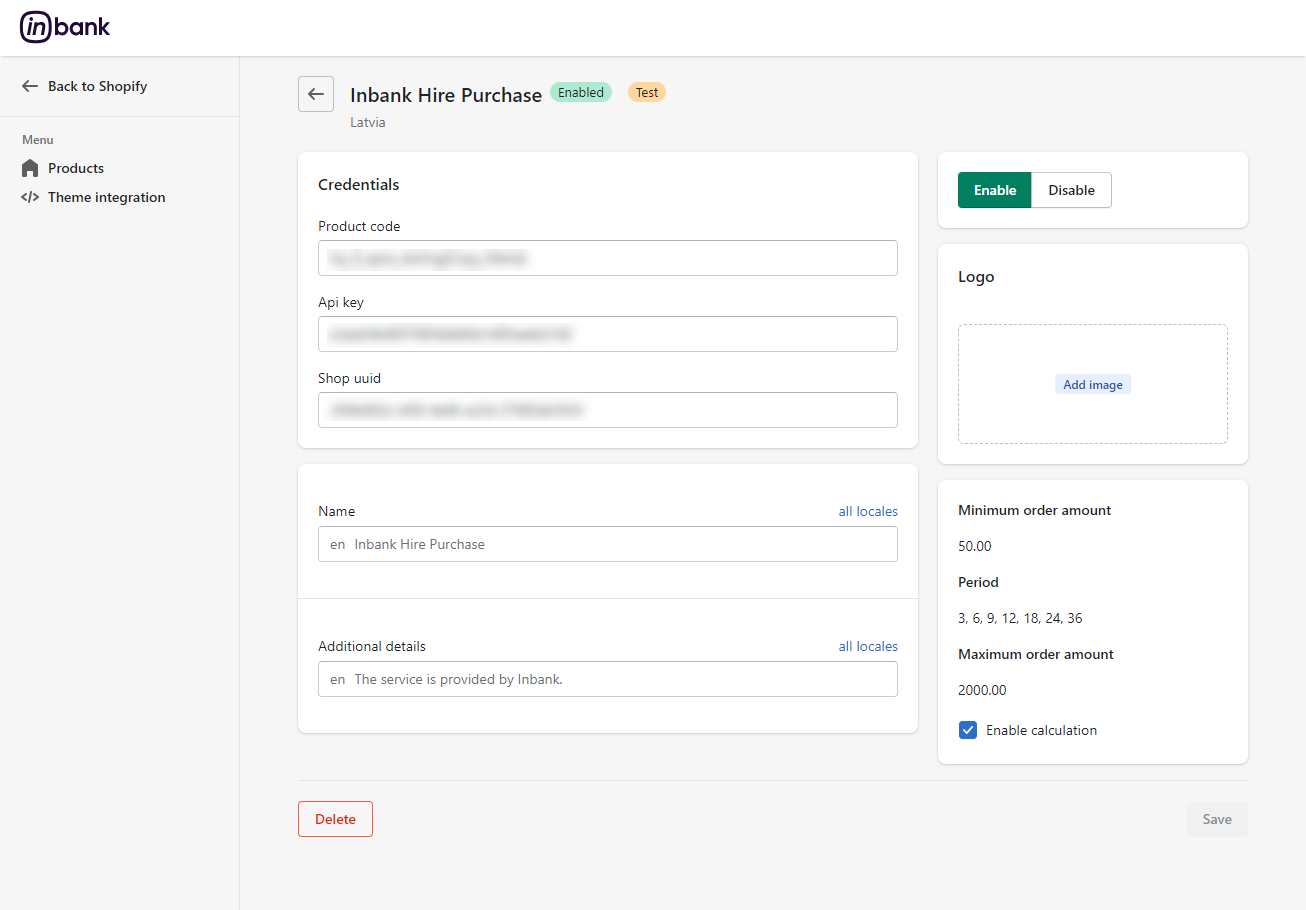
| Field | Description |
|---|---|
| Credentials | |
| Product code | The product code provided by Inbank. This code defines the credit conditions offered at checkout. |
| API key | The unique key of the shop used for building API requests through which the shop communicates with Inbank. |
| Shop UUID | The API authentication key. The API key should be kept private. |
| Other available payment product parameters | |
| Name | The payment method title that is displayed to customers at checkout. The default Name is defined by the Product code. You can customize it for Inbank Hire Purchase Estonia, Inbank HP Flex Estonia, Inbank Hire Purchase Poland, Inbank HP Flex Poland, Inbank Hire Purchase Czechia, Inbank Hire Purchase Latvia, Inbank HP Flex Latvia, Inbank Hire Purchase Lithuania and Inbank Moki Lithuania products. If you set a different Product code, your custom value will be overridden with the new default one, which can then be customized. |
| Additional details | The consent message displayed under the payment method at checkout. The default Additional details are defined by the Product code, but can be customized. |
| Enable/Disable | Whether this Inbank product should be available to customers as a payment option. |
| Logo | A custom logo for the payment method which will be displayed next to the name. If the custom logo is removed, the default logo will be applied. |
| Minimum Order Amount | The minimum order amount for which the payment method is available. The value is defined by the product code. For sums below this value, the payment method is not available. |
| Period | The period options in months for which credit under this payment method is granted. The values are defined by the product code. |
| Maximum Order Amount | The maximum order amount for which the payment method is available. The value is defined by the product code. For sums above this value, the payment method is not available. |
| Enable calculation | Whether calculations of Inbank payment products should be presented on product pages. When enabled, the calculations will appear on the pages of products within the minimum-maximum range for this Product Code. The exact calculation depends on the type of the product. For Hire Purchase products it is a preliminary calculation of monthly payments; for Split into parts it is the calculation of interest-free equal monthly payments. Calculations are enabled by default in the Inbank settings and need to be added to the store theme. More information in Adding Inbank Calculations to Storefront. |
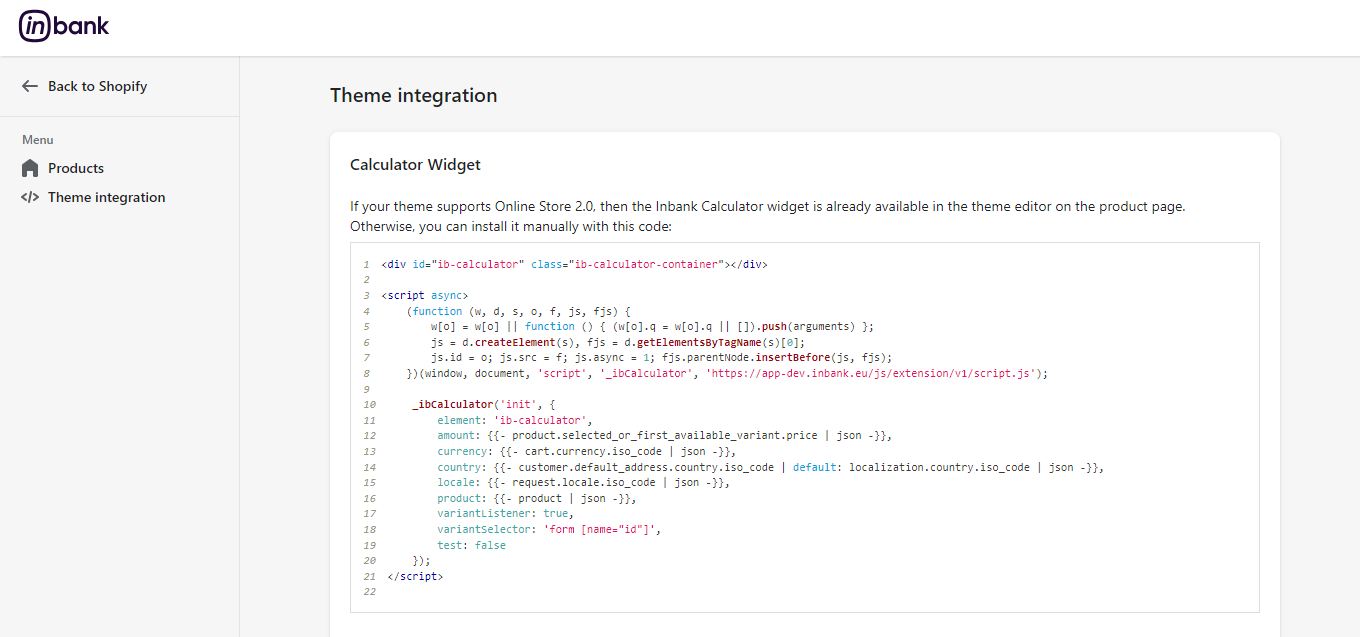
Information related to product page calculations can be found at Settings > Payments > Inbank > Manage > Manage > Theme integration.
If your store theme supports Online Store 2.0, then Inbank calculations are automatically available with the Pay Later Platform in the theme editor on the product page. By default, calculations are enabled in the Inbank settings and just need to be added to the store theme.
If your store theme does not support Online Store 2.0, you can add the Inbank calculations manually using the code provided on the Theme integration page.
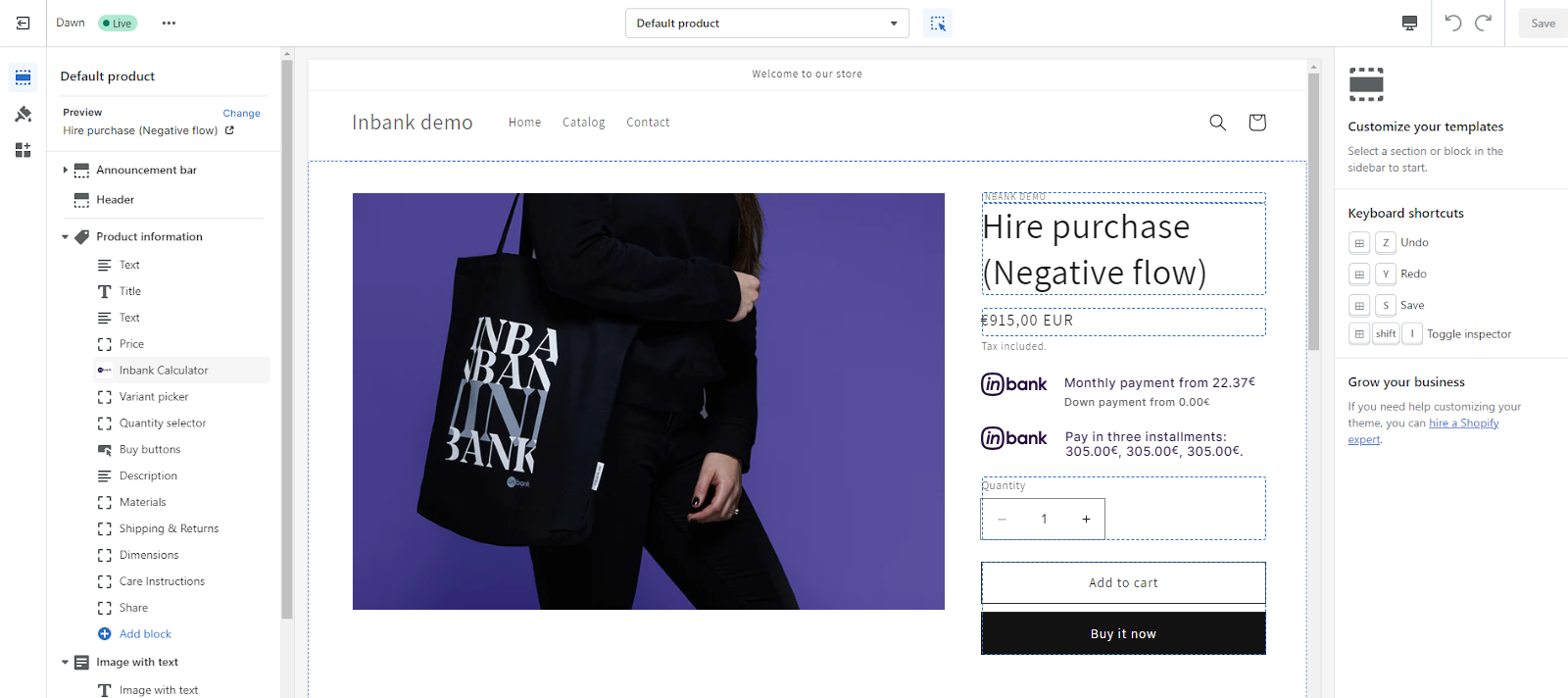
The Inbank Calculator block needs to be added in the theme of the product pages at Online Store > Themes > Customize > Products.
Inbank provides a dedicated staging environment for testing the integration with payment solutions. For testing purposes, you need to specify several parameters in the payment method settings at Add product at Settings > Payments > Inbank > Manage > Manage.
When adding a new payment option you need to:
- Use the Test mode
- Specify the Api key provided for the test environment
- Specify the Shop uuid provided for the test environment
- Specify the Product code provided for the test environment
The Api key, Shop uuid and Product code are provided by Inbank.
For testing purposes, the system returns preconfigured decisions:
- For Inbank Hire Purchase Estonia, Split into parts Estonia, Inbank HP Flex Estonia, Inbank Hire Purchase Poland, Inbank HP Flex Poland, Inbank Hire Purchase Czechia, Inbank Hire Purchase Latvia, Split into parts Latvia, Inbank HP Flex Latvia, Inbank Hire Purchase Lithuania and Inbank Moki Lithuania payment products, positive decision is given for amounts 0 - 500, 15 000 - 16 000.
The credit application process may include an OTP code exchange via SMS. The demo environments do not send out SMS messages. If you are testing Split into parts payment products, the SMS message is hardcoded to value 0000.
Testing Inbank Payments Estonia products
To test the financing products in Estonia, you can safely use your own Estonian ID-code and ID-card, as the demo environment does not initiate real binding contracts. Alternatively, you can use our demo user, the identity code of which is 10101010005. Besides the identity code, you will also need a name and a phone number for authentication and signing.
To use an ID-card in the demo environment, you need to register it at:
- ID-card - https://demo.sk.ee/upload_cert/.
You can also use Smart-ID by downloading the following apps:
To use Smart-ID for testing, your account level should be Qualified. You can check the account level at https://sid.demo.sk.ee/portal/login.
There are a couple of things which can be updated in the Pay Later Platform:
App updates. Your store always automatically has the latest version of the Pay Later Platform, so no need to bother about any app updates.
API data updates. After you set a product code for an Inbank payment method, the app retrieves product related parameters via API from Inbank. Inbank can make changes to these data and the changes need to be synchronized with the settings of the app. Of course, you do not need to keep track of the updates, the Pay Later Platform has a daily check for updates and applies them to your store.
Configuration parameters which can receive updates:
- Title
- Maximum order amount
- Minimum order amount
- Period
- Additional details
Product settings updates. The payment product which is offered to customers depends on the product code set for the payment method. If at any point you need to change the product code or any other product configuration, this can be easily done through the app settings at Settings > Payments > Inbank > Manage > Manage.
To update the settings for the Pay Later Platform, click Edit next to the payment method you wish to change, make the required configuration changes and click Save.
That is it. Your product settings are now updated.
This section showcases how Inbank payment methods work in the store.
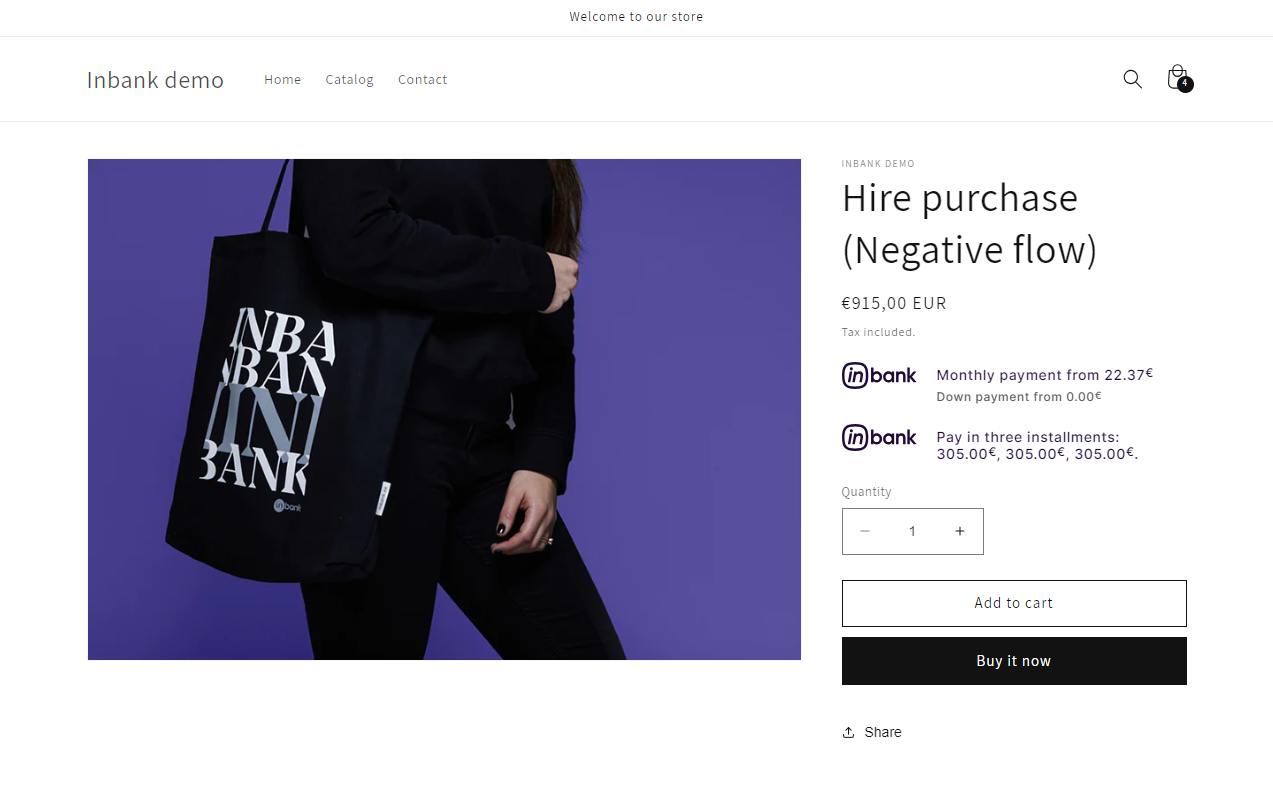
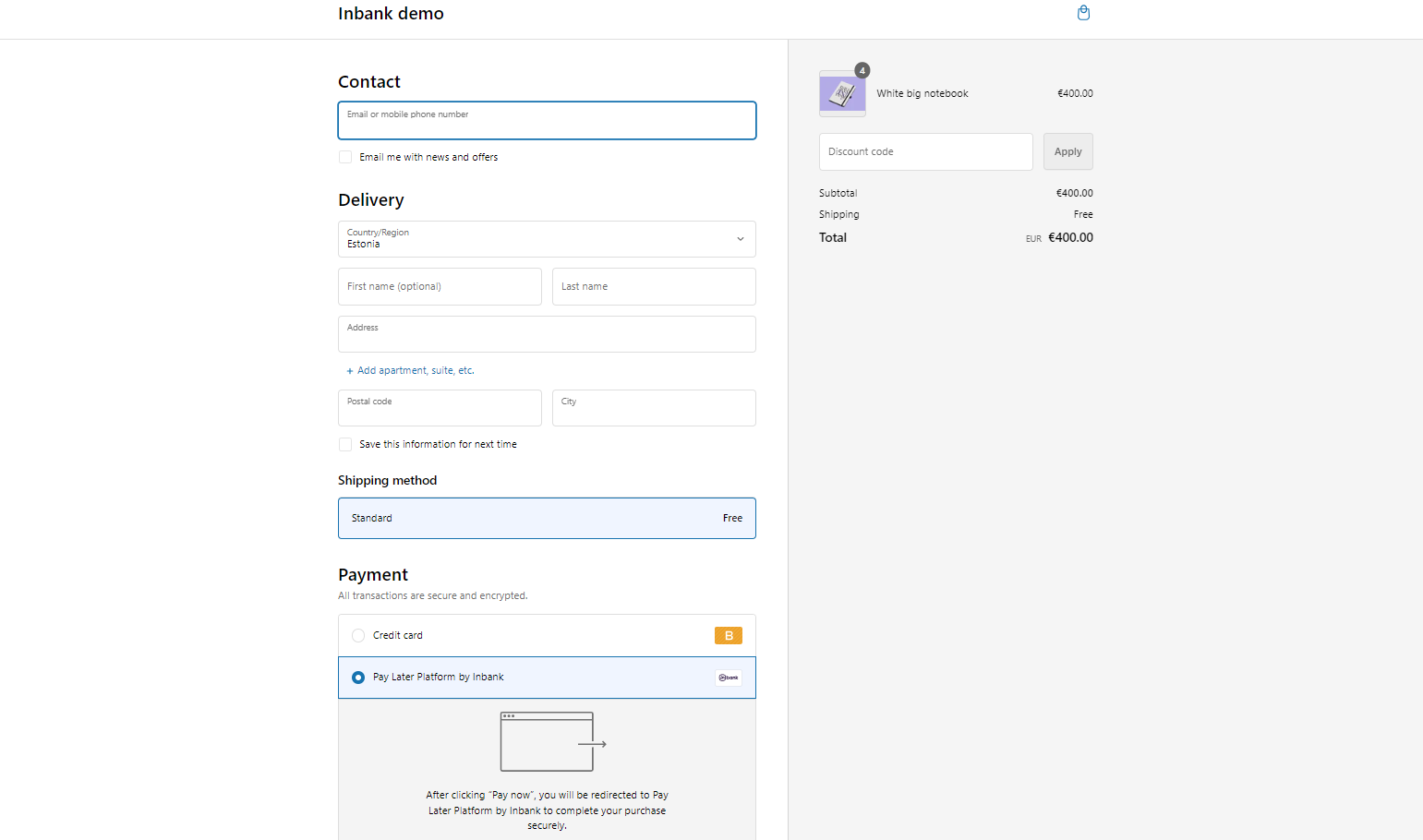
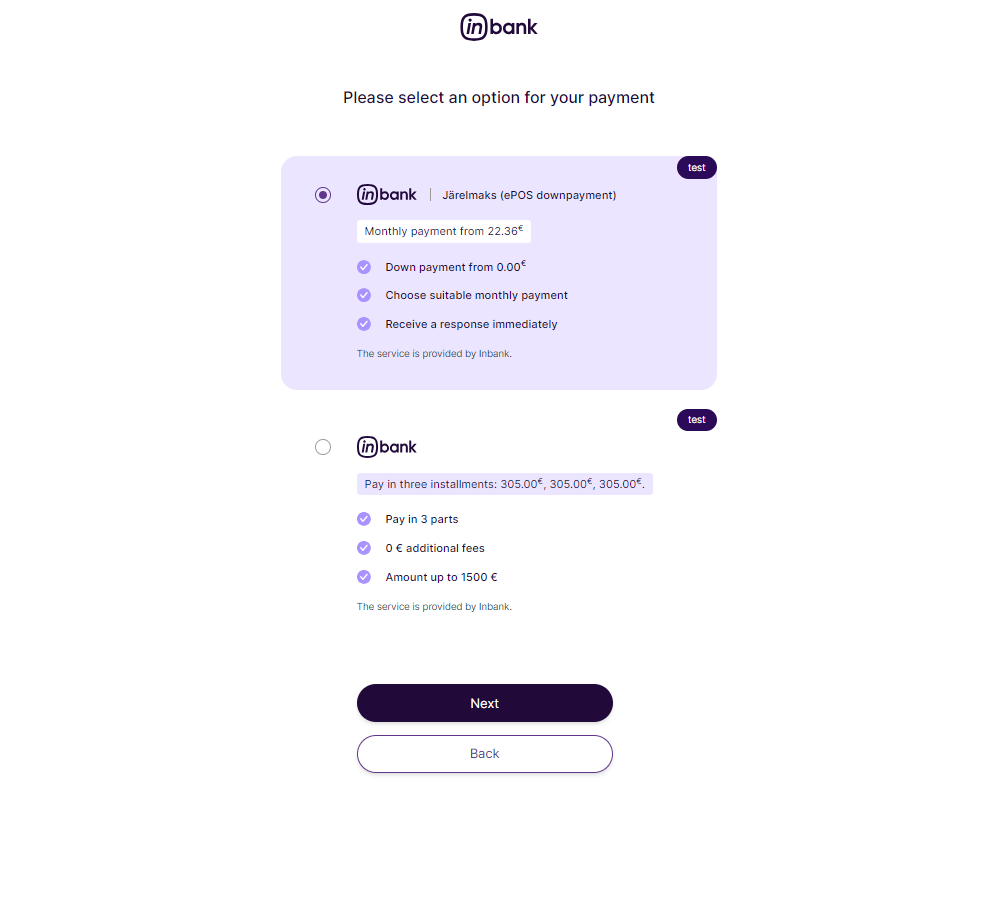
Note that the following screenshots are only demonstrational. The actual way the Inbank payment methods appear in your Shopify store depends on the storefront theme, Inbank settings, the Inbank branch with which you have concluded the contract and the locale of your store.
- If enabled and added to your theme, calculations for Inbank payment options appear on product pages.
- Inbank appears at checkout as an available payment method:
- Once customers choose Inbank as their payment method and click Complete order, they are redirected to the Inbank environment where they first choose the preferred Inbank payment product and then go through a number of dialogs to complete the financing of the purchase.
- After completing the procedure in Inbank environment, customers are redirected back to the shop.
If the purchase has been financed by Inbank, the customer will be redirected to the payment success page. Otherwise, the customer will be redirected back to the cart.
Payment transactions can be viewed in the Orders section of the admin panel.
Orders which have been successfully financed by Inbank receive the payment status Paid.
If the flow is configured to require merchant approval prior to concluding the credit contract, the order which has been approved by Inbank for financing can fall into one of the two following scenarios:
If payments are collected manually, the status will be set to Authorized and this is a signal that payments can be manually collected before the authorization period expires. By starting the capture process from the admin panel in this case the partner approves the contract. If the partner does not want to approve the contract, the order needs to be canceled, which also cancels the Inbank contract.
If the payments are collected automatically, the status will be set to Pending and the contract needs to be confirmed through the Inbank Partner Portal. After the approval, the status will be set to Paid.