Magento Extension Guide
Plugin version 3.4.9, 13.02.2026
Here at Inbank we strive to help our partners sell more by simplifying purchases and making financing more accessible to customers. For exactly this reason we offer a number of buy-now-pay-later (BNPL) solutions. Our most known credit offering is hire-purchase, also known as payment by installments.
The Inbank e-commerce extension for Magento connects partner e-shops with our e-POS solution. With Inbank e-POS, partners only need to add Inbank as a payment method and Inbank will take care of all the rest. Customers are redirected to the e-POS environment to complete the financing of the purchase. After a successful financing process we redirect the customer back to you.
Inbank e-POS is supplemented with Inbank Partner Portal where merchants can see the overview of submitted credit applications, create applications for customers and conduct contract withdrawals.
If you have any questions regarding the Inbank Magento extension, just contact us and we will be happy to help:
- Estonia - integration@inbank.ee
- Poland - integration@inbank.pl
- Latvia - integration@inbank.lv
- Czech Republic - integration@inbank.cz
- Lithuania - integration@inbank.lt
The Pay Later Platform by Inbank supports Magento 2.4.x versions.
The Inbank e-commerce extension for Magento gives merchants access to the following Inbank products:
You can find the list of available Inbank products here.
| Version | Date | Updates |
|---|---|---|
| 3.0.1 | 09.12.2024 | Added Inbank Hire Purchase Lithuania payment product. |
| 3.0.2 | 06.06.2025 | Updated LT calculation logic. |
| 3.1.0 | 17.06.2025 | Added Inbank Moki Lithuania payment product. |
| 3.2.1 | 06.08.2025 | Added Inbank HP Flex product for EE and LV. |
| 3.2.2 | 13.08.2025 | The invoice should be generated after the order is verified on the ePOS return. |
| 3.2.3 | 27.08.2025 | Fixed product save action in admin. |
| 3.2.4 | 18.09.2025 | Added Changes to Moki1 product. |
| 3.3.0 | 22.09.2025 | Added Inbank HP Flex product for PL. |
| 3.4.1 | 01.10.2025 | Removed Inbank Pay next month product. |
| 3.4.4 | 31.10.2025 | Bugfixes. |
| 3.4.6 | 05.11.2025 | General calculator enabler. Fixed version control initiation. |
| 3.4.7 | 23.01.2026 | HP LV calculator and cehckout information fixes. |
| 3.4.9 | 13.02.2026 | HP LT validation fixes. Removed from POS session request redundant key. |
You can download the latest version of the extension from here:
- version 3.4.6 - build compatible with Magento 2.4.4-2.4.7 and PHP 8.1-8.3
- version 2.0.3 - build compatible with Magento 2.4.2-2.4.7 and PHP 7.4-8.2
- version 2.0.3 - build compatible with Magento 2.4.2 and PHP 7.3
To install the Inbank e-commerce extension you just need to follow these steps:
- Copy the extension folder into
the/app/code/directory. - Enable the extension using the following command:
php bin/magento --clear-static-content module:enable Inbank_InbankPayment- Upgrade the database by running:
php bin/magento setup:upgrade- If you are in live mode, you also need to compile and deploy by running the following commands:
php bin/magento setup:di:compile
php bin/magento setup:static-content:deploy- As the last step, clear the cache by running:
php bin/magento cache:flushAfter successful installation of the Pay Later Platform by Inbank, you can enable Inbank payments and configure Inbank products as payment methods in your back office.
The very first step is enabling Inbank payment in your system which is done at Stores > Settings > Configuration > Sales > Payment Methods.
The Other Payments Methods section will list InbankPayments as an option, click on it to expand the settings.
To enable Inbank payments in your store, set the Enabled parameter to Yes.
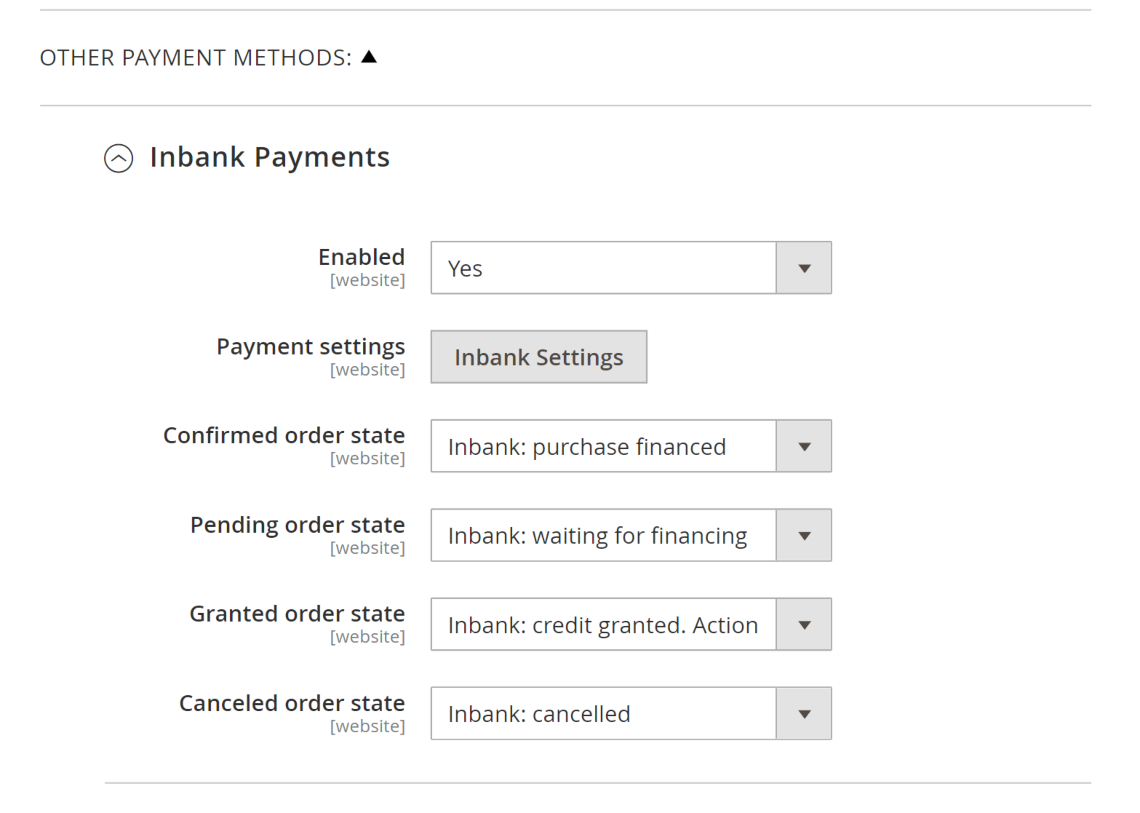
Further configuration can be accessed by clicking the Inbank Settings button, you can find detailed information in the Extension Overview Page and Adding New Payment Options sections.
Here you can also customize which statuses the extension sets for:
- Confirmed order state - for cases when the purchase was successfully financed by Inbank
- Pending order state - for cases when the purchase is awaiting financing by Inbank
- Granted order state - for cases when the credit was granted by Inbank, and contract activation awaits partner approval
- Canceled order state - for cases when the credit has been canceled
After successful installation of the Pay Later Platform by Inbank, you can configure Inbank products as payment methods in your back office.
Pay Later Platform configuration is done at Stores > Settings > Inbank.
The extension includes the following Inbank payment methods:
- Inbank Hire Purchase (Estonia, Latvia, Poland, Czech Republic, Lithuania)
- Inbank Split into parts (Estonia, Latvia)
- Inbank Green Energy (Czech Republic)
- Inbank Moki (Lithuania)
- Inbank HP Flex (Estonia, Latvia, Poland)
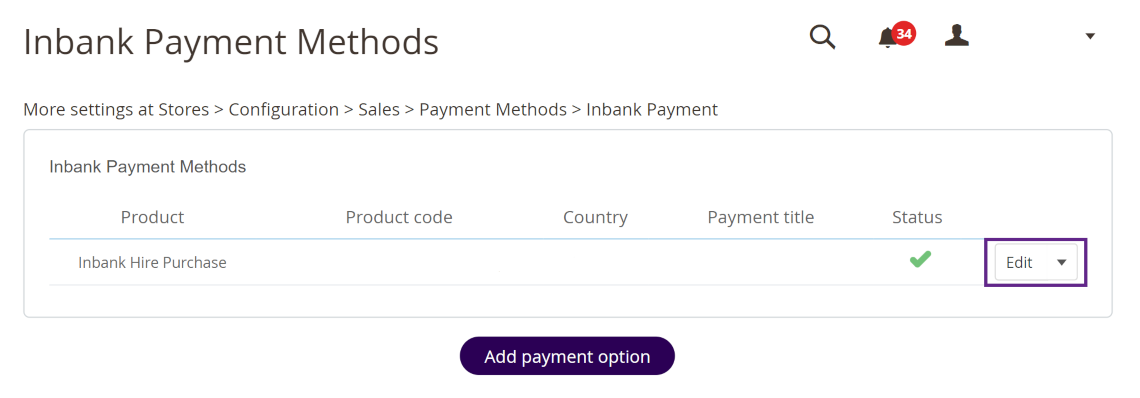
The extension overview page at Stores > Settings > Inbank includes the list of all the Inbank payment options added.
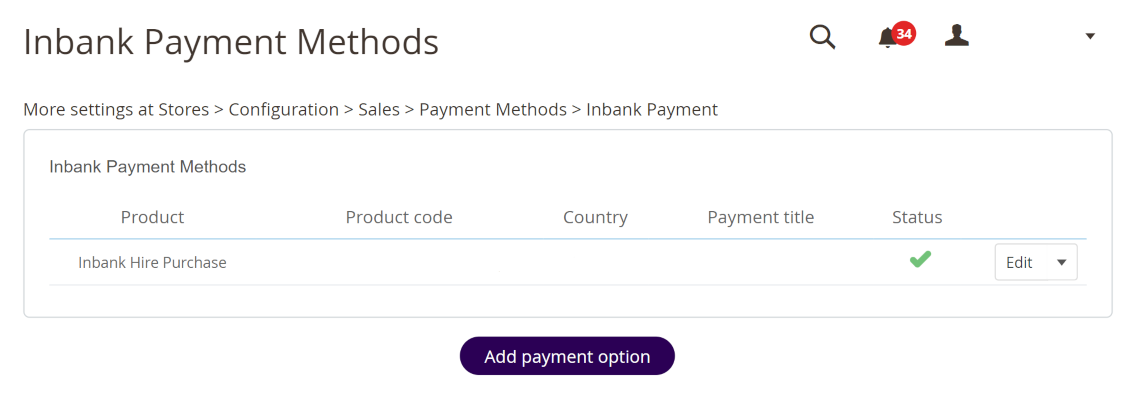
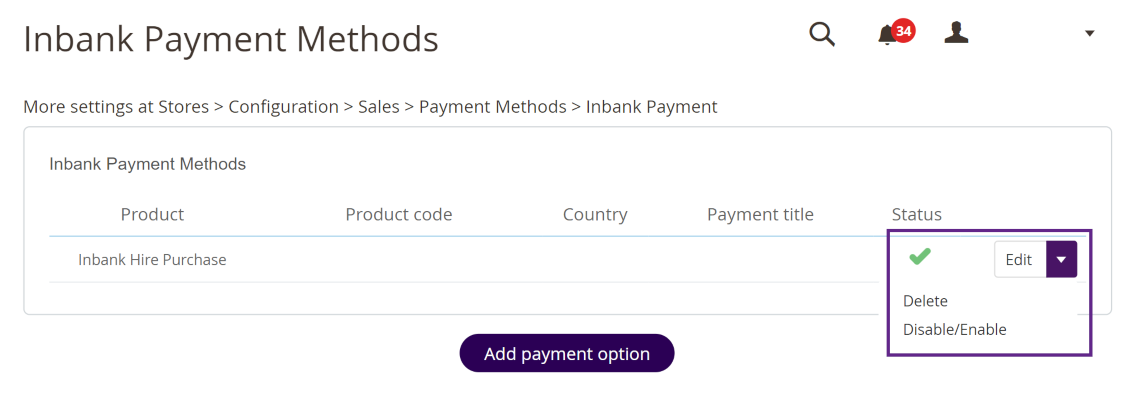
Here several actions regarding added payment options are available:
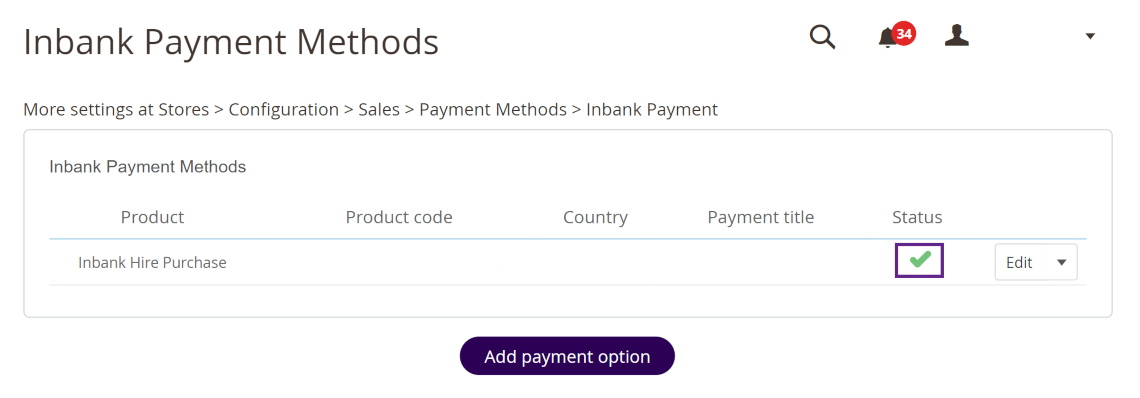
- Click the Status icon next to a payment option to enable/disable it.
- Click Edit next to a payment option to make changes yto it's configuration.
- Click the dropdown button next to a payment option to enable/disable or delete it.
New payment options are added via clicking the Add payment option at Stores > Settings > Inbank.
Depending on the Inbank branch(es) you are cooperating with, you need to configure the payment products for Estonia, Poland, Czechia, Latvia or Lithuania. You can offer one of the available products or several, depending on the agreement you have with Inbank.
The following configuration parameters are predefined by Inbank:
- Title
- Maximum order amount
- Minimum order amount
- Period
- Additional details
Note that the predefined values will be updated if they change on the Inbank side. The exceptions are the Title and Additional details values which are customizable. The Title and Additional details are updated if set to default, but are not updated if they have been customized.
For more information on updates, refer to the Updates section.
Adding a new Inbank payment method to the extension configuration is a simple two-step process.
On step 1 you need to set the keys and product code required for the functioning of the extension and the mode in which this payment product is to be available: live or test.
Inbank representatives will provide you all the data required for this step. Make sure to fill in all the fields correctly, as they are essential to the configuration of Inbank payment products.
On step 2 you can review your configuration and set a couple additional options available in the extension.
To start adding a new Inbank payment product, click Add payment option at Stores > Settings > Inbank. Configuration settings are similar for all payment products: Inbank Hire Purchase Estonia, Inbank Split into parts Estonia, Inbank HP Flex Estonia, Inbank Hire Purchase Poland, Inbank HP Flex Poland, Inbank Hire Purchase Czech Republic, Inbank Green Energy Czech Republic, Inbank Hire Purchase Latvia, Inbank HP Flex Latvia, Inbank Hire Purchase Lithuania and Inbank Moki Lithuania.
The product code set during configuration defines the credit conditions available to customers and also automatically sets the following parameters:
- Title
- Minimum order amount
- Maximum order amount
- Period
- Additional details
Step 1 includes the essential parameters needed for the payment option setup. Inbank representatives will provide you all the information needed at this step. After you add the necessary data, click Next to proceed to step 2 where you review the configuration and can set a number of additional parameters for the payment option.
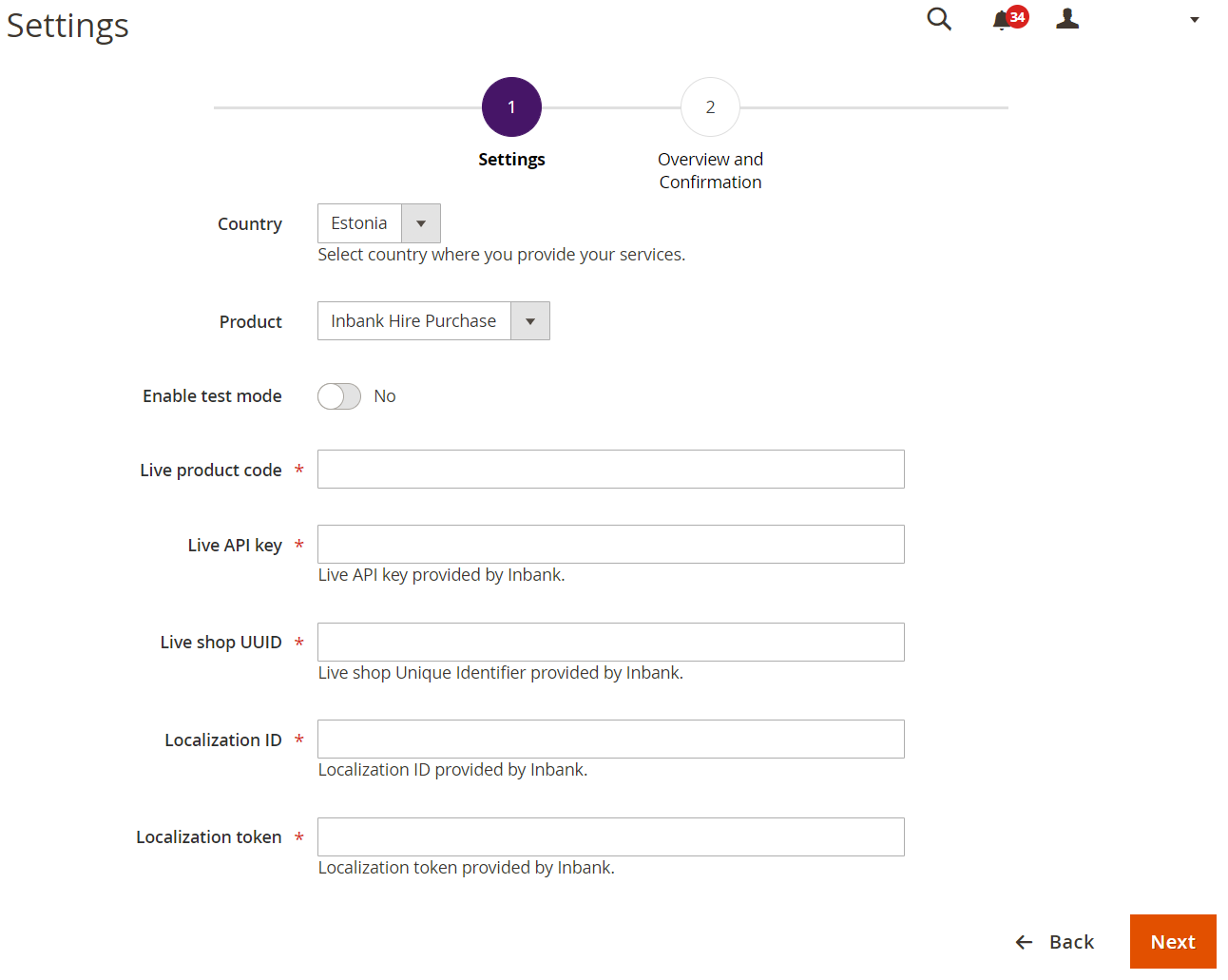
| Field | Description |
|---|---|
| Country | The market for which you wish to add an Inbank payment method. Available options: Estonia, Poland, Latvia, Czech Republic, Lithuania. |
| Product | The payment product you wish to add. The section depends on the Country: - Inbank Hire Purchase (Estonia, Latvia, Poland, Czech Republic, Lithuania) - Inbank HP Flex (Estonia, Latvia, Poland) - Inbank Split into parts (Estonia, Latvia) - Inbank Green Energy (Czech Republic) - Inbank Moki (Lithuania) |
| Live product code / Test product code | The product code provided by Inbank. This code defines the credit conditions offered at checkout. |
| Enable test mode | Select whether the extension should be connected to test API for testing purposes. If this parameter is not enabled, the extension connects to the live API. This parameter defines whether next you need to set the API key, UUID and product code for the live or test environment. By default, test mode is disabled, but the setting can be customized. |
| Live API key / Test API key | The unique key of the shop used for building API requests through which the shop communicates with Inbank. |
| Live shop UUID / Test shop UUID | The API authentication key. The API key should be kept private. |
| Localization ID | ID of the set of translations required for the extension. Translations are available in Estonian, Polish, English, Latvian, Czech, Russian and Lithuanian. |
| Localization token | Token required to access the translations for storefront texts. |
Step 2 lets you review the payment option configuration and includes a number of additional parameters which can be configured for Inbank payment methods.
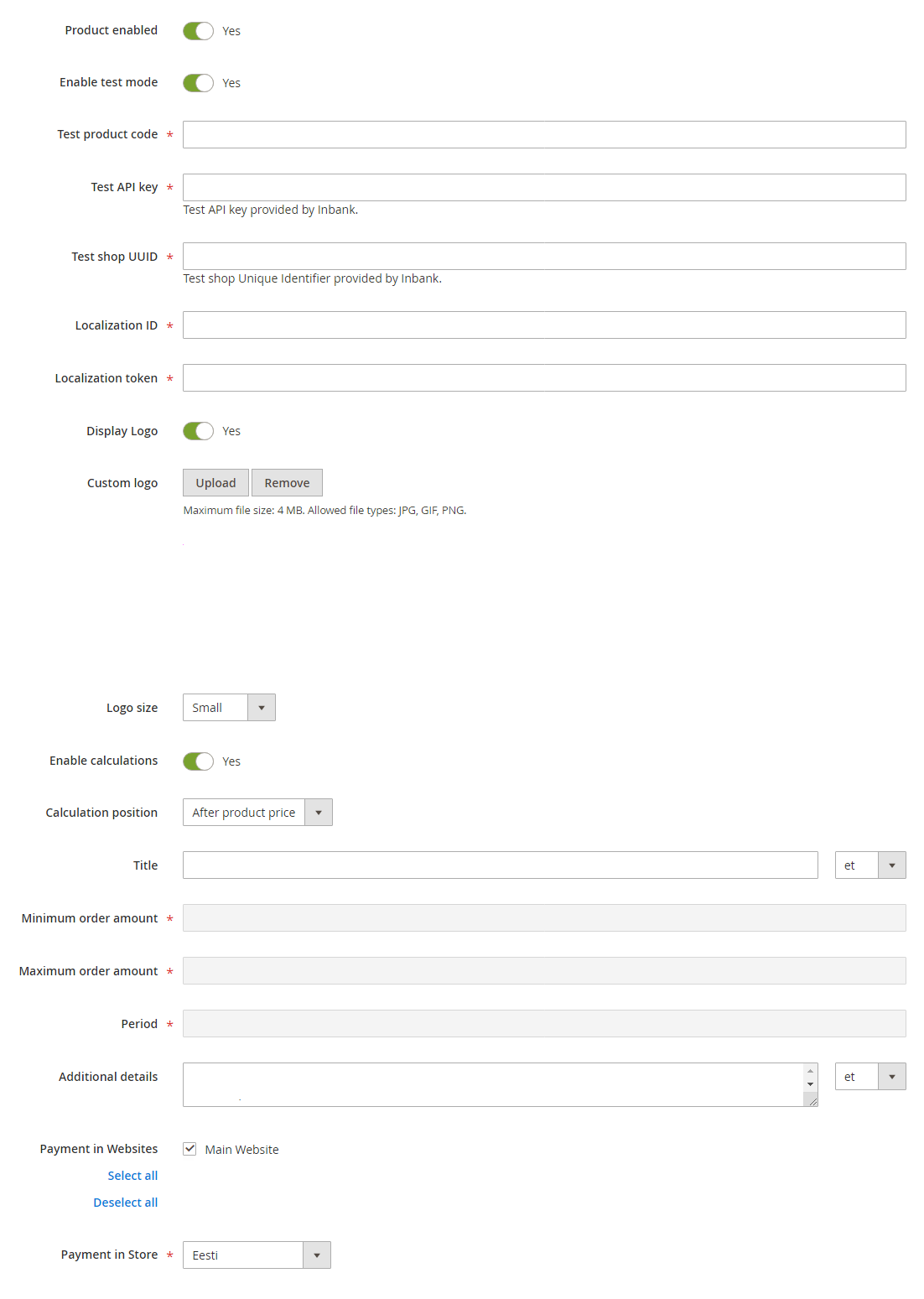
| Field | Description |
|---|---|
| Enable product | Whether this Inbank product appears as a payment method at checkout. |
| Enable test mode | Select whether the extension should be connected to test API for testing purposes. If the parameter is not enabled, the extension connects to the live API. This parameter defines whether next you need to set the API key, UUID and product code for the live or test environment. |
| Live product code/Test product code | The product code provided by Inbank. This code defines the credit conditions offered at checkout. This parameter is prefilled from Step 1 , but you can change the Product Code here if needed. |
| Live API key / Test API key | The unique key of the shop used for building API requests through which the shop communicates with Inbank. This parameter is prefilled from Step 1 , but you can change the API key here if needed. |
| Live shop UUID / Test shop UUID | The API authentication key. The API key should be kept private. This parameter is prefilled from Step 1 , but you can change the UUID here if needed. |
| Localization ID | ID of the set of translations required for the extension. Translations are available in Estonian, Polish, English, Latvian, Czech, Russian and Lithuanian. This parameter is prefilled from Step 1 , but you can change the Localization ID here if needed. |
| Localization token | Token required to access the translations for storefront texts. This parameter is prefilled from Step 1 , but you can change the Localization token here if needed. |
| Display logo | Whether the payment method logo will be displayed next to the title at checkout. By default the logo is enabled, but the setting can be customized. |
| Custom logo | A custom logo for the payment method which will be displayed next to the title at checkout. If the custom logo is removed, the default logo will be applied. |
| Logo size | The size of the payment method logo which is displayed next to the title at checkout. The logo will be displayed only if the Use Logo parameter is set to Yes. Available size options are Small and Medium. The default value is Small, but the setting can be customized. |
| Enable calculations | Whether calculated monthly amounts should be presented on product pages. When enabled, preliminary calculations of monthly payments will appear on the pages of products within the minimum-maximum range for this Product code. Calculations are available for Inbank Hire Purchase Estonia, Inbank HP Flex Estonia, Inbank Hire Purchase Poland, Inbank HP Flex Poland, Inbank Hire Purchase Czech Republic, Inbank Hire Purchase Latvia, Inbank HP Flex Latvia, Inbank Hire Purchase Lithuania and Inbank Moki Lithuania payment products only. |
| Calculation position | The exact place where the Inbank monthly payment calculation will be displayed. Available options: - After product price - After add to cart - In extrahint block |
| Title | The payment method title that is displayed to customers at checkout. The recommended Title length is 65 characters. The default Title is defined by the Product code. You can customize it for Inbank Hire Purchase Estonia, Inbank HP Flex Estonia, Inbank Hire Purchase Poland, Inbank HP Flex Poland, Inbank Hire Purchase Czech Republic, Inbank Hire Purchase Latvia, Inbank HP Flex Latvia, Inbank Hire Purchase Lithuania and Inbank Moki Lithuania products, in which case the default value will be displayed under the Title field. If you set a different Product code, your custom value will be overridden with the new default one, which can then be customized. |
| Minimum Order Amount | The minimum order amount for which the payment method is available. The value is defined by the product code. For sums below this value, the payment method is not displayed. |
| Maximum Order Amount | The maximum order amount for which the payment method is available. The value is defined by the product code. For sums above this value, the payment method is not displayed. |
| Period | The period options in months for which credit under this payment method is granted. The values are defined by the product code. |
| Additional details | The consent message displayed under the payment method at checkout. The default Additional details are defined by the Product code. You can customize it, then the default value will be displayed under the Additional details field. |
| Payment in Websites | If you have multiple stores configured in your Magento instance, you can select in which stores exactly the payment method will be available. |
| Payment in Store | If you have payment methods configured for different stores in your Magento instance, you can select the market for which payment methods will be presented on the product page. |
Inbank provides a dedicated staging environment for testing the integration with payment solutions For testing purposes, you need to specify several parameters in the payment methods settings at Stores > Settings > Inbank. When adding a new payment option you need to:
- Switch on the Enable test mode parameter
- Specify the Test API key
- Specify the Test shop UUID
- Specify the Test product code
The Test API key, Test shop UUID and Test product code are provided by Inbank.
For testing purposes, the system will return preconfigured decisions:
- For Inbank Hire Purchase Estonia, Inbank Split into parts Estonia, Inbank HP Flex Estonia, Inbank Hire Purchase Latvia, Inbank HP Flex Latvia, Inbank Hire Purchase Lithuania, Inbank Moki Lithuania, Inbank Split into parts Latvia, Inbank Hire Purchase Czech Republic, Inbank Green Energy Czech Republic, Inbank HP Flex Poland and Inbank Hire Purchase Poland payment products, positive decisions are given for amounts 0 - 500, 15 000 - 16 000.
The credit application process may include an OTP code exchange via SMS. The demo environments do not send out SMS messages. If you are testing Split into parts payment products, the SMS message is hardcoded to value 0000.
Testing Inbank Payments Estonia products
To test the financing products in Estonia, you can safely use your own Estonian ID-code and ID-card, as the demo environment does not initiate real binding contracts. Alternatively, you can use our demo user, the identity code of which is 10101010005. Besides the identity code, you will also need a name and a unique phone number for authentication and signing.
To use an ID-card or Mobile-ID in the demo environment, you need to register them at:
- ID-card - https://demo.sk.ee/upload_cert/.
- Mobile-ID - https://demo.sk.ee/MIDCertsReg/.
You can also use Smart-ID by downloading the following apps:
To use Smart-ID for testing, your account level should be Qualified. You can check the account level at https://sid.demo.sk.ee/portal/login.
There are a couple of things which can be updated in the Pay Later Platform
Extension updates. The current version of the extension contains all the functionality required to offer Inbank payment methods to customers. In the future we plan on adding new payment products to the extension, as well as features to improve existing functionality. Updating the extension to the latest version will support added features and keep your store up to date with the latest enhancements from Inbank to make purchases even smoother for your customers.
API data updates. The extension retrieves data from Inbank regarding the conditions of payment products offered to customers. This data can undergo changes on the Inbank side. If such changes occur, product parameters should also be updated in the extension, for the customers to successfully use Inbank payment methods.
Extension settings updates. The payment product which is offered to customers depends on the product code set for the payment method. If at any point you need to change the product code or any other extension configurations, this can be easily done through the extension settings.
If a new version of the Inbank extension for Magento comes out and you want to make use of the functionality it offers, updating the extension is quick and easy. Do not worry about the configuration settings. While the extension is updated, all settings, including API keys, product codes, etc., are migrated into the new version of the extension.
- Download the.zip package containing the new version of the extension from here:
- version 3.0.0 - build compatible with Magento 2.4.4-2.4.7 and PHP 8.1-8.3
- version 2.0.3 - build compatible with Magento 2.4.2-2.4.7 and PHP 7.4-8.2
- version 2.0.3 - build compatible with Magento 2.4.2 and PHP 7.3
Unpack the files and copy them to the root folder of your Magento installation.
Enable the extension using the following command:
php bin/magento --clear-static-content module:enable Inbank_InbankPayment- Upgrade the database by running:
php bin/magento setup:upgrade- If you are in live mode, compile and deploy by running the following commands:
  php bin/magento setup:di:compile
php bin/magento setup:static-content:deploy- Clear cache by running:
php bin/magento cache:flushAfter you set a product code for an Inbank payment method, the extension retrieves product related parameters via API from Inbank. Inbank can make changes to these data and the changes need to be synchronized with the settings of the extension. Of course, you do not need to keep track of the possible updates, the Inbank extension will check for updates and apply them to your store.
Configuration parameters which can receive updates:
- Title
- Minimum Order Amount
- Maximum Order Amount
- Period
- Additional Details
For the API data to be updated automatically, please make sure that cron jobs are enabled in your store.
If at any point you need to make changes to the extension settings, you can access the configuration at Stores > Settings > Inbank.
To update the settings for the Pay Later Platform click Edit next to the payment method you wish to update, make the required configuration changes and click Save.
That is it. Your module settings are now updated.
This section showcases how Inbank payment options work at checkout.
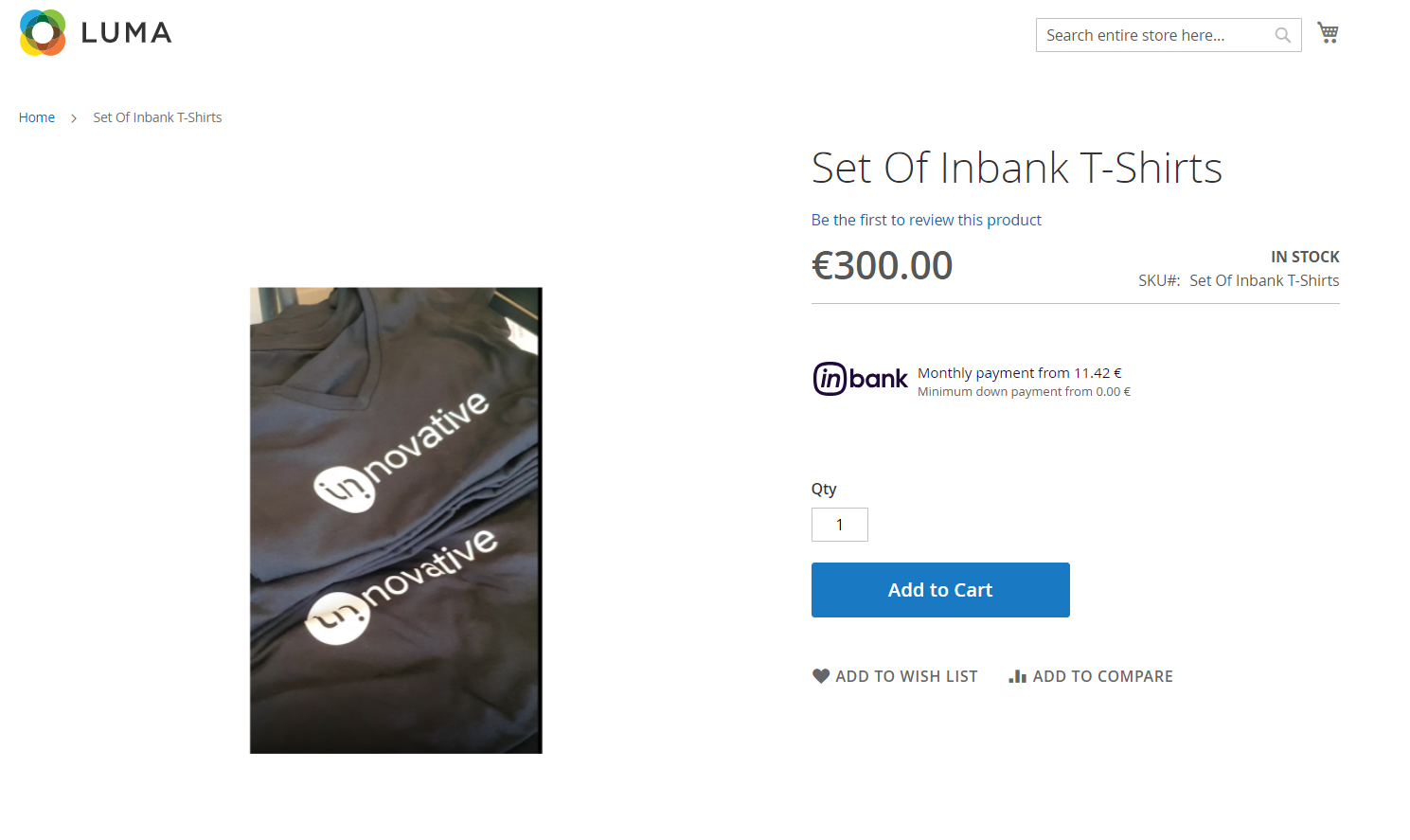
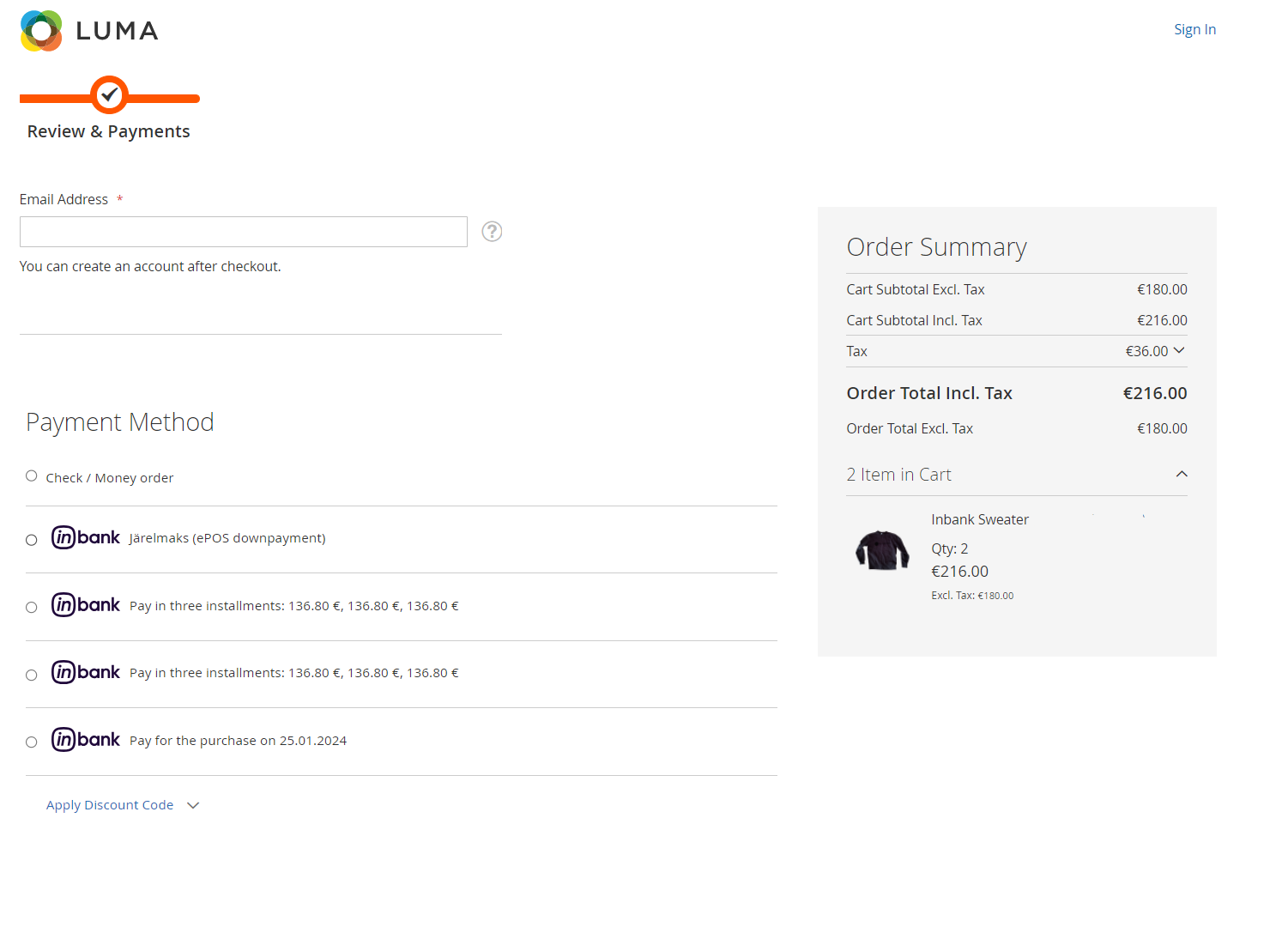
Note that the following screenshots are only demonstrational. The actual way the Inbank payment solution appears in your Magento store depends on the extension settings, the Inbank branch with which you have concluded the contract, the theme and locale of your store.
- If enabled, Inbank monthly payment calculations appear on product pages.
- Inbank products appear at checkout as available payment methods:
Once customers choose Inbank products as their payment method, they are redirected to the Inbank e-POS environment. Here customers go through a number of dialogs to complete the financing of the purchase.
After completing the procedure in Inbank e-POS, customers are redirected back to the shop.
If the purchase has been financed by Inbank, the customer will be redirected to the page configured in your Magento instance as the payment success page. Otherwise, the customer will be redirected back to the cart where they can choose an alternative payment method.
Payment transactions can be viewed in the Sales > Orders section of the admin panel.
Until the credit contract has been signed by the customer and approved by Inbank for financing, it remains in status Inbank: waiting for financing. Orders which have been successfully financed by Inbank receive status Inbank: purchase financed.
If the flow is configured to require merchant approval prior to concluding the credit contract, the order which has been approved by Inbank for financing receives status Inbank: credit granted. Action required. In this state the order awaits the merchant's approval or cancellation. If the merchant approves the contract, the order receives status Inbank:purchase financed. Contracts are approved and cancelled through the Inbank Partner Portal.